

Creating API Keys
-
Generate an API key: To create a new API key, navigate to Data > APIs and click Generate API Key.
-
Add a Name: Give the key a name that reflects its intended use. The name is for display only and helps you keep track of each key.
-
Set an Expiration: Choose when the key expires. New keys expire after 90 days by default. You can also choose Never, 30 days, 6 months, 1 year, or Custom date.
-
Select Scopes: Choose the appropriate scopes based on the endpoints you want to access:
- Summary Page: Read — Use this scope to retrieve data from the Summary Page endpoint.
- Customer PII: Read — Use this scope to see customer email, name, phone, and address in SQL and MCP results. Without it, those fields come back as
blocked. - Pixel Attribution: Read — Use this scope to access customer journey data from the Attribution endpoint.
- MCP: Read — Use this scope to access Triple Whale data through the Model Context Protocol (MCP) server.
- Ads: Write — Use this scope to upload ad records to the Ads Data-In Endpoint.
- Email/SMS: Write — Use this scope to upload email and SMS records to the Email/SMS Data-In Endpoint.
- Orders: Write — Use this scope to upload order records to the Orders Data-In Endpoint or enrich order records via the Enrich Orders Data Endpoint.
- Customers: Write — Use this scope to upload customer records to the Customers Data-In Endpoint.
- Products: Write — Use this scope to upload product records to the Products Data-In Endpoint.
- PPS: Write — Use this scope to upload survey responses to the Post-Purchase Survey (PPS) Data-In Endpoint.
- Subscriptions: Write — Use this scope to upload subscription records to the Subscriptions Data-In Endpoint.
- Compliance: Write — Use this scope to submit data deletion requests to the Compliance Endpoint.
-
Click Generate API Key to create the API key.
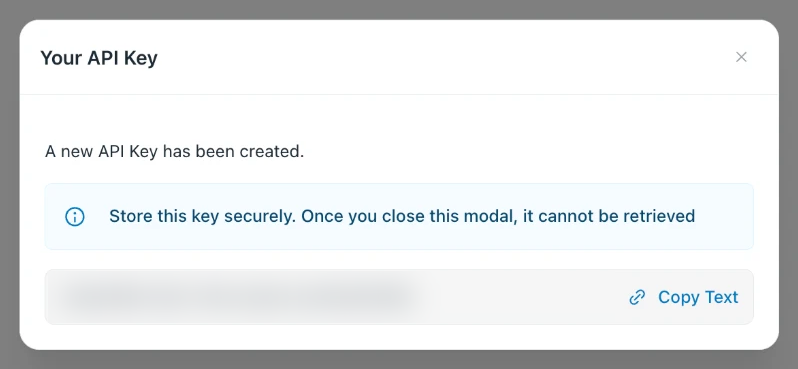
Your new key will appear in a popup. Copy and store it securely. Once the popup is closed, the key will no longer be accessible.
If you can't generate a key, contact Customer Success.
Managing API Keys
After generating API keys, they will be displayed in the Generated API Keys table, showing each key's prefix, name, scopes, the timestamp of the last API call using the key, and its expiration date. The Actions column lets you edit, rotate, or revoke each key.

Editing an API Key
Click Edit to change a key's name, scopes, or expiration date, then click Save.
- Expires: Choose Never, 30 days, 90 days, 6 months, 1 year, or Custom date. A key with a custom date expires at the end of that day. Expiration dates must be between 1 hour and 2 years from now.
- Scopes and access: Removing a scope or shortening the expiration is always allowed. Adding a scope or extending the expiration requires the same access as creating a key. If you see "Adding scopes or extending the expiration is not enabled for your account," contact Customer Success.
Rotating an API Key
Click Rotate and confirm to replace a key's secret, for example if you suspect it was exposed. You get a new key with the same name, scopes, and expiration date, shown once in a popup. Copy and store it securely.
The current key stops working immediately when you rotate it. Update your integration with the new key.
Revoking an API Key
Click Revoke and confirm to delete a key you no longer need.
Revoking an API key takes effect immediately and is irreversible.
Testing Your API Key
To validate your API key, send a request to the Validate API Key endpoint.
Best Practices
- Keep your API key secure: Treat it like a password. Avoid sharing it publicly.
- Rotate periodically: Use Rotate to replace your key regularly to enhance security.
- Limit scope: Restrict the key to the necessary operations only, and select Customer PII: Read only if your integration needs customer personal data.
- Keep an expiration date: New keys expire after 90 days by default. Choose Never only for integrations that can't be updated with a new key.
- Be aware of user access dependencies: API keys are tied to the user who created them. If that user loses access to the account (e.g. removed from the workspace), the associated API key will also stop working.